User Guide
A step-by-step manual for the TkaTak Sports mobile app, with screenshots. There are two kinds of user: Fans, who follow live scores and watch matches, and Scorers, who create teams, score matches ball-by-ball and stream them. Jump to your section below.
Getting started
Download, sign in, and pick how you'll use the app.
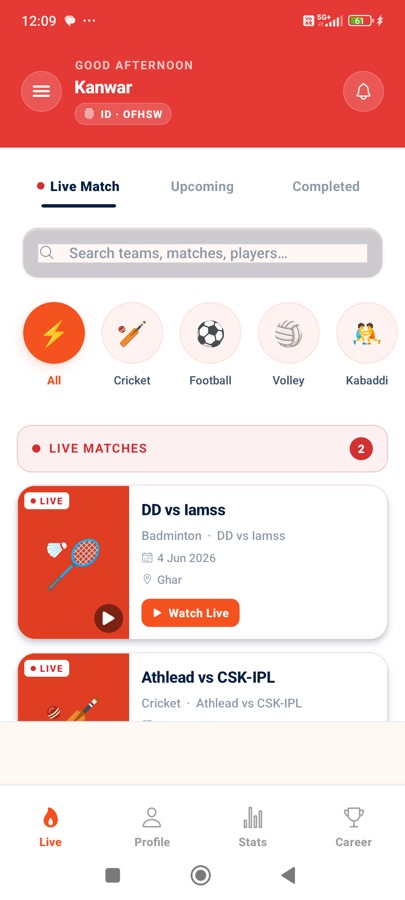
Install & sign in
- Install TkaTak Sports on your Android phone and open it.
- Tap Sign in with Google and choose your account.
- The first time, you pick a role — Player (fan) or Scorer. This decides which home screen you land on.
Your player code (e.g. OFHSW) is your unique ID — scorers use it to add you to a team's squad.
For fans (players)
Follow live matches, watch streams, and track your own stats.
Find matches
The Home screen opens on the Live tab.
- Switch between Live Match, Upcoming and Completed at the top.
- Tap a sport circle (All, Cricket, Football…) to filter.
- Use the search bar to find a team, match or player.
- Tap Watch Live on any match card to open it.
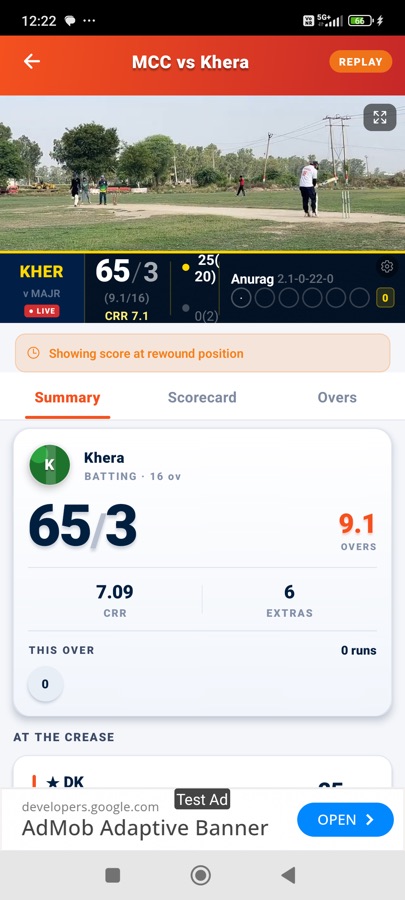
Watch a match
The match screen shows the video with a live score ticker overlaid, and tabs below.
- Summary — current score, run rate, this over, who's at the crease.
- Tap the ⤢ expand icon on the video for fullscreen.
- For completed games, tap REPLAY to watch the recording with the score synced to the video.
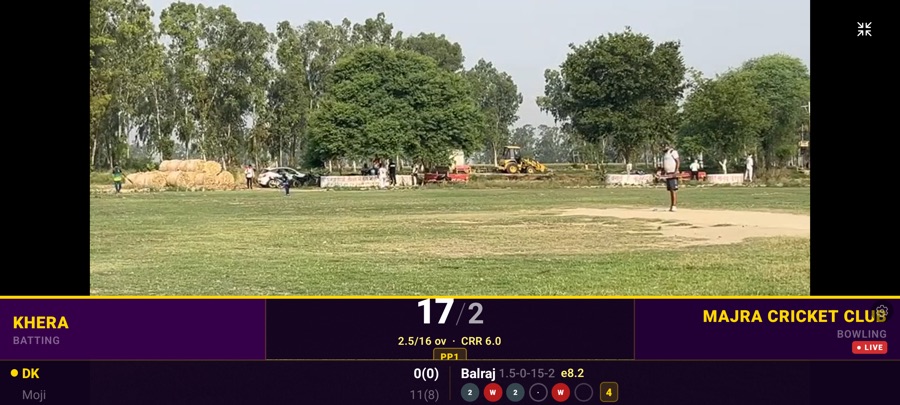
Fullscreen viewing
In fullscreen the app rotates to landscape with a TV-style broadcast ticker pinned to the bottom — score, batsmen, bowler and the over so far. Tap the ⤡ icon to exit, or the gear to change the ticker look.
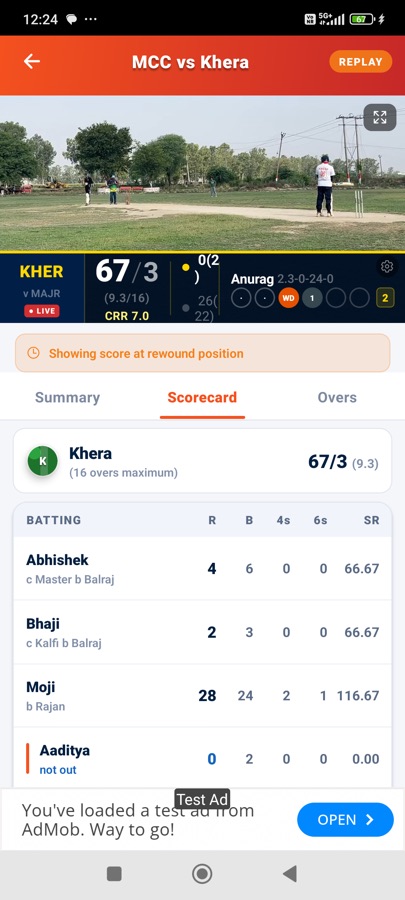
Read the scorecard
The Scorecard tab shows the full batting card (runs, balls, 4s, 6s, strike rate and how each batter was out) and bowling figures. The Overs tab shows a ball-by-ball breakdown.
New to cricket? See our cricket scoring guide to decode the numbers.
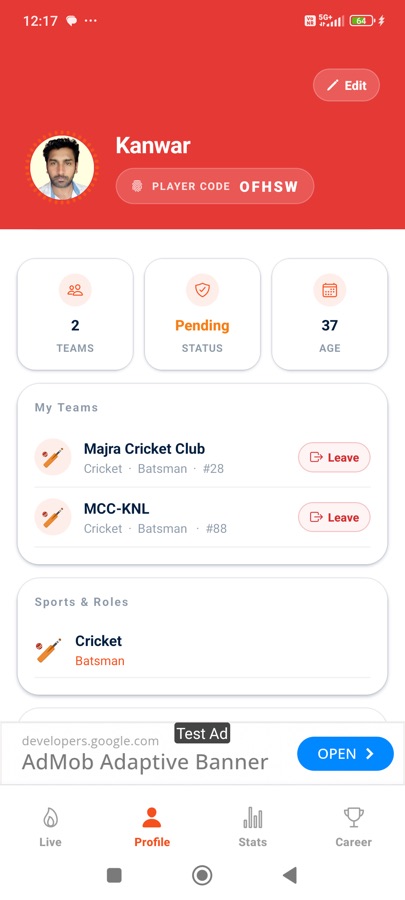
Your profile
The Profile tab shows your photo, player code, the teams you belong to, and your sport & role.
- Tap Edit to update your name, photo or details.
- Tap Leave to remove yourself from a team.
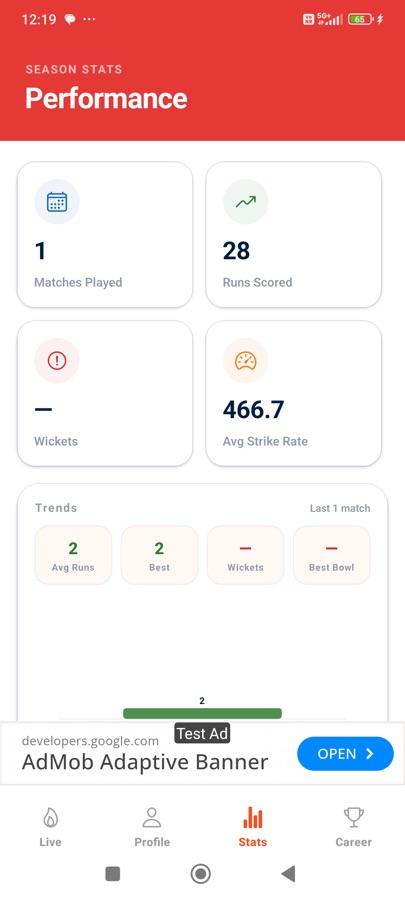
Stats & Career
The Stats tab shows your season performance — matches, runs, wickets, strike rate and recent trends. The Career tab totals your all-time record: high score, 50s/100s, best bowling and Player-of-the-Match awards.
Your stats update automatically once a match you played in is completed.
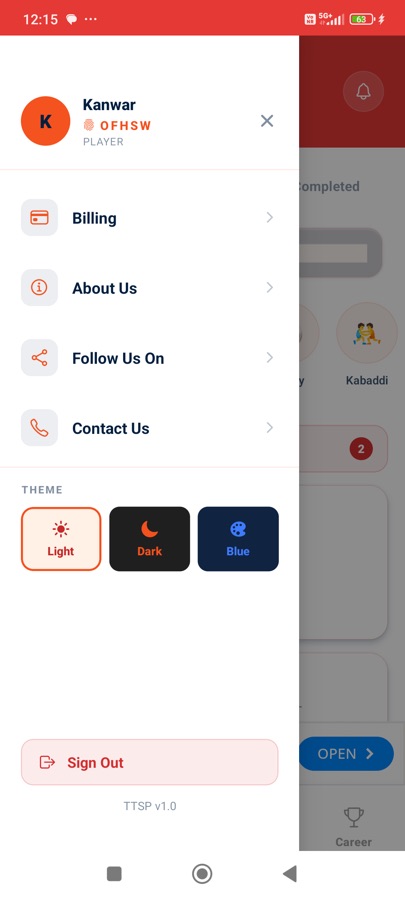
Menu & themes
Tap the ☰ menu (top-left) for Billing, About, Contact, and to Sign Out. You can switch the app's look between Light, Dark and Blue themes here.
For scorers
Set up teams and matches from the Scorer home. The bottom bar has Home, Create, Teams, Ticker and Broadcast.
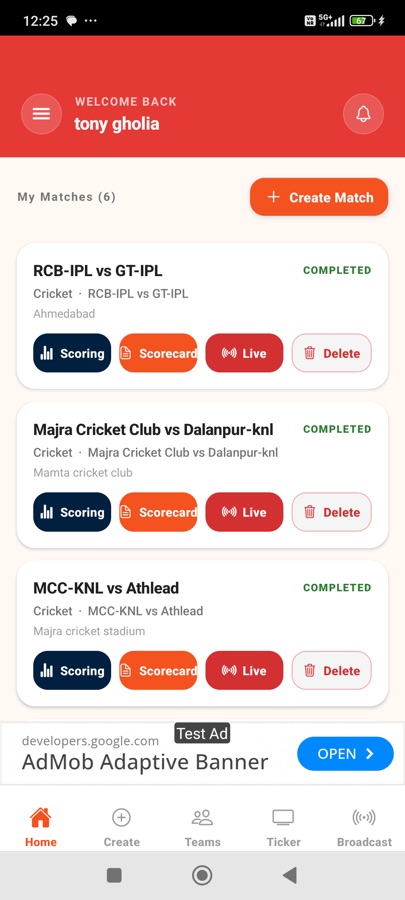
Scorer home
My Matches lists everything you've created. Each card has:
- Scoring — open the live scoring console.
- Scorecard — view the full card.
- Live — the broadcast/streaming controls.
- Delete — remove the match.
Manage teams
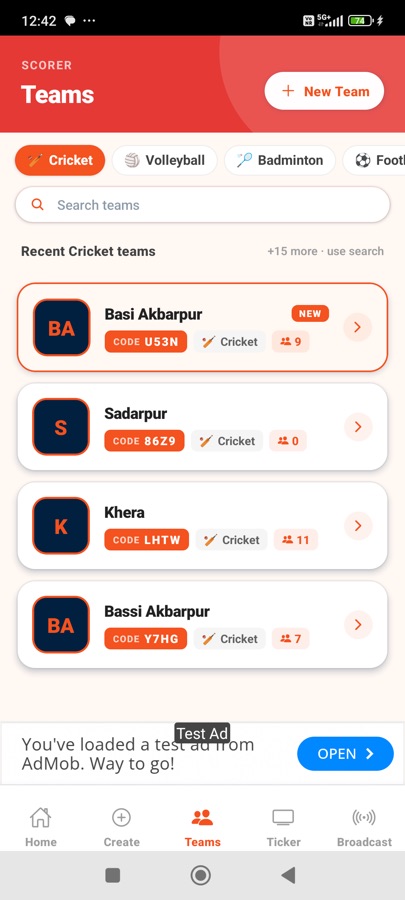
On the Teams tab you can browse your teams (filtered by sport) and search them. Each team has a share code and a player count.
- Tap + New Team to create one — set a name, sport, and add players by their player code.
- Tap a team to edit its squad, jersey numbers and roles.
Create a match — Step 1: Sport
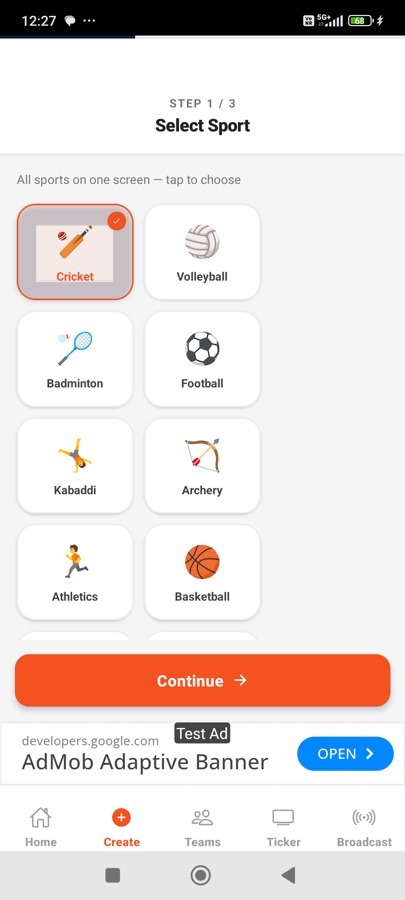
Tap + Create Match. On step 1, tap the sport (Cricket, Football, Volleyball, Kabaddi…) and tap Continue.
Step 2: Teams & format
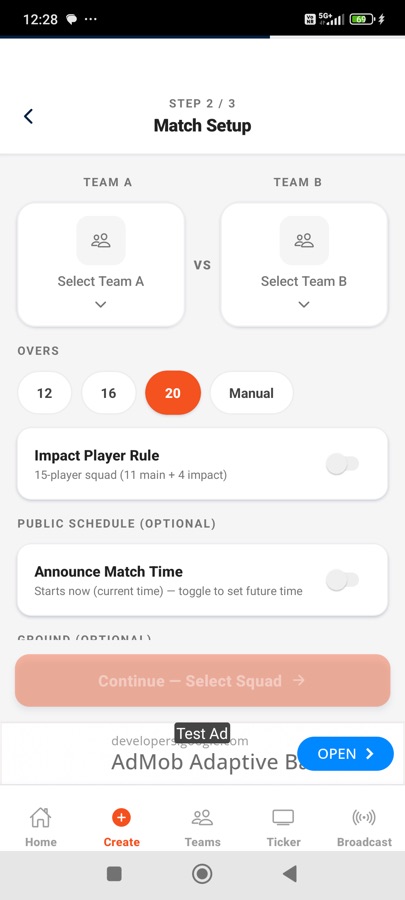
- Pick Team A and Team B.
- Choose the overs (12 / 16 / 20 / Manual).
- Optionally enable the Impact Player rule.
- Optionally set a future match time to announce it as Upcoming.
Step 2: Ground & toss
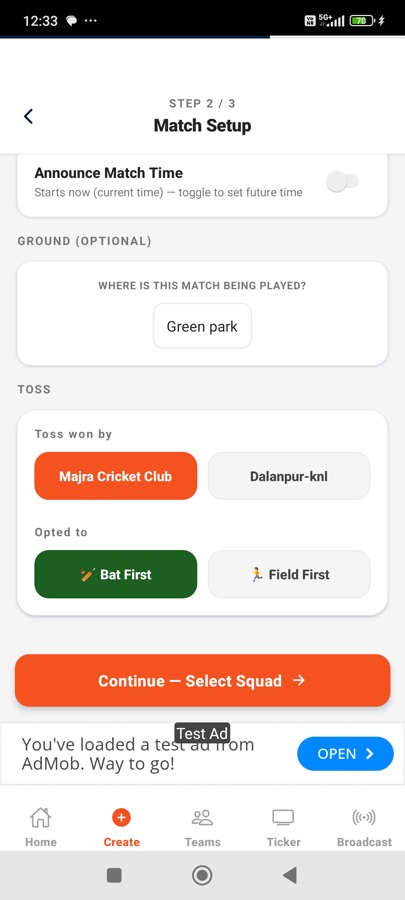
Scroll down to add the Ground name (optional) and record the Toss — who won it and whether they chose to Bat First or Field First. Then tap Continue — Select Squad.
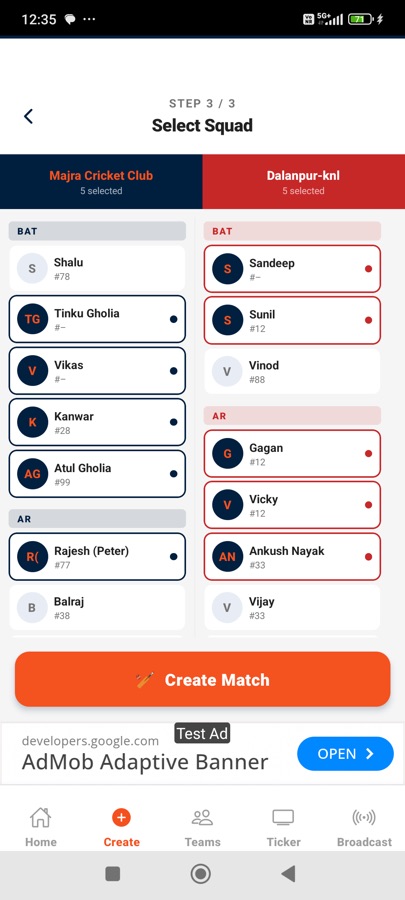
Step 3: Select squad
Pick the playing members for each team (grouped by role — batters, all-rounders, bowlers). Selected players are highlighted. When both sides are set, tap 🏏 Create Match.
Live scoring
Record the match ball by ball. The scoreboard and any live stream update instantly for viewers.
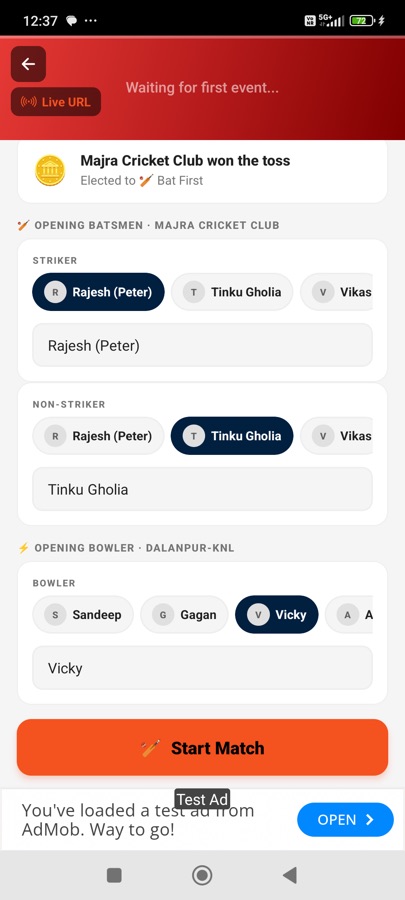
Start the innings
Open a match's Scoring. Before the first ball, choose the opening Striker and Non-Striker and the opening Bowler, then tap 🏏 Start Match.
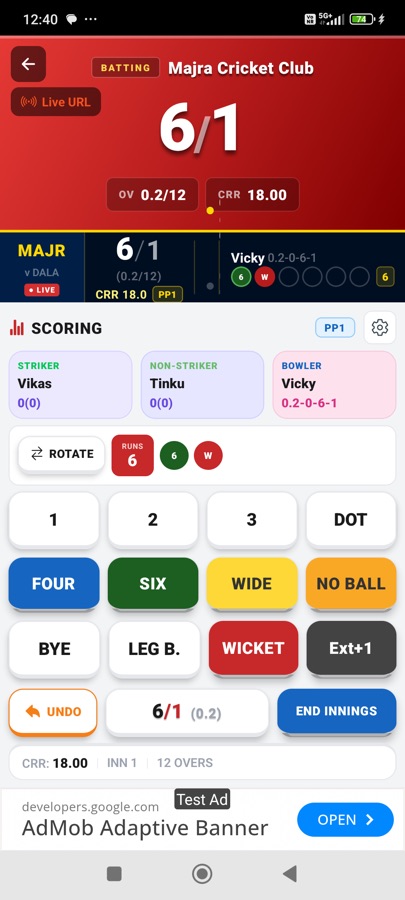
Score each ball (cricket)
The top shows the live total, over and current run rate; below are the striker, non-striker and bowler.
- Tap 1 / 2 / 3 / DOT for runs, or FOUR / SIX for boundaries.
- Tap WIDE / NO BALL / BYE / LEG B. for extras, and Ext+1 to add an extra run.
- Tap WICKET to record a dismissal (pick how out and the new batter).
- ROTATE swaps the strike; UNDO reverses the last ball.
- END INNINGS closes the innings; the gear opens ball-entry options.
The engine follows ICC rules — free hits after no-balls, extras and dismissals are handled automatically.
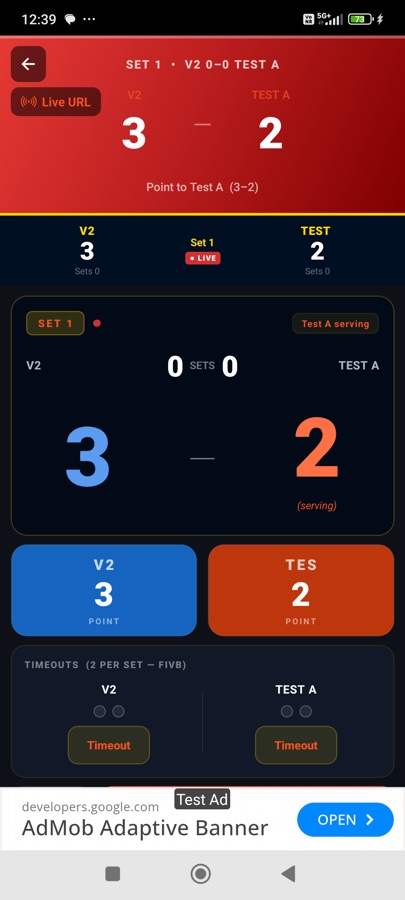
Other sports
Non-cricket sports have their own consoles — for example volleyball tracks points, sets, who's serving and timeouts. The flow is the same: create the match, then tap to record each point/goal.
Streaming & ticker
Attach a live video and customise the on-screen score overlay.
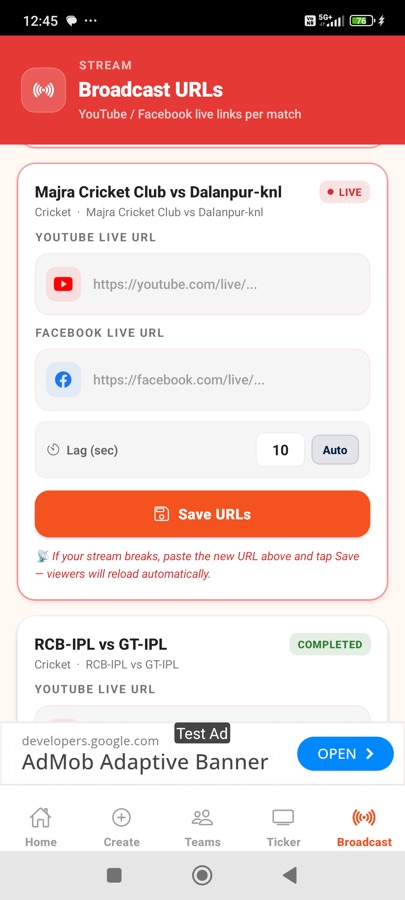
Add a live stream
On the Broadcast tab, paste your YouTube or Facebook Live URL for a match and tap Save URLs. Viewers then get the video with the synced score ticker.
- Set a Lag value (or Auto) so the score matches the stream delay.
- If your stream drops, paste the new URL and Save — viewers reload automatically.
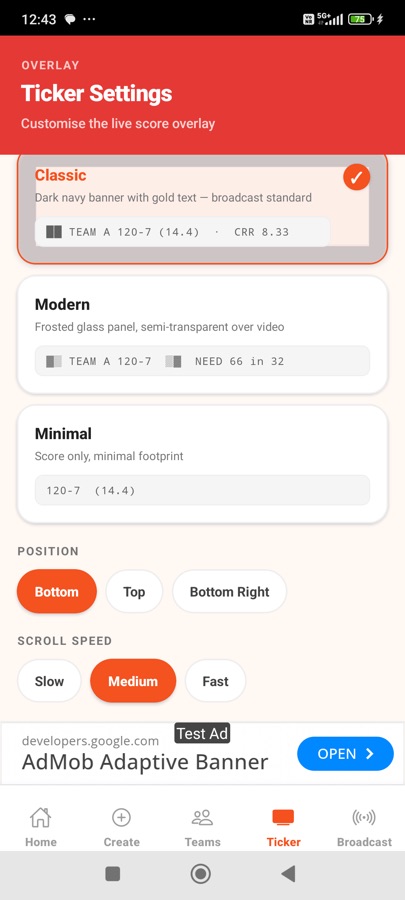
Customise the ticker
The Ticker tab controls the live score overlay shown over your video:
- Style — Classic (broadcast banner), Modern (frosted glass) or Minimal.
- Position — Bottom, Top or Bottom-Right.
- Scroll speed — Slow, Medium or Fast.
Still stuck? Head to the FAQ or contact us — we're happy to help.